The Lipa na M-PESA Sticker allows customers to access and make payments to a business using the Lipa na M-PESA payment service. Businesses can download their Lipa na M-PESA Sticker through the M-PESA Business App and make it available to customers for convenient payments.
This guide explains How To Download Lipa na M-PESA Sticker using the M-PESA Business App. The process involves accessing your business account through the app, locating the Lipa na M-PESA Sticker option, and downloading the sticker to your device for use at your business premises.
READ ALSO: How To Check Kenya Power Planned Power Outages
What is Lipa na M-PESA Sticker?
Lipa na M-PESA Sticker is a payment sticker associated with a Lipa na M-PESA business service that can be displayed by a business to make it easier for customers to make payments. It provides customers with a convenient way to access the business’s M-PESA payment details when making a payment.
The Lipa na M-PESA Sticker is available to businesses using Lipa na M-PESA services and can be accessed through the M-PESA Business App. The app provides Lipa na M-PESA merchants and agents with access to business services in one place, including services used to manage their M-PESA business account.
What is Lipa na M-PESA Sticker Download?
Lipa na M-PESA Sticker Download refers to the process of accessing and downloading a Lipa na M-PESA Sticker through the M-PESA Business App. The downloaded sticker can then be saved on your device and used by a business to provide customers with convenient access to its Lipa na M-PESA payment details.
The Download Lipa na M-PESA Sticker process is available to eligible Lipa na M-PESA businesses using the M-PESA Business App. By accessing the relevant sticker option within the app, a business can download its Lipa na M-PESA Sticker and use the downloaded copy for its payment needs.
Requirements Needed To Download Lipa na M-PESA Sticker
To Download Lipa na M-PESA Sticker, you need to have access to the M-PESA Business App and an active Lipa na M-PESA Till Number (Buy Goods and Services). You should also have an internet connection and a smartphone with the M-PESA Business App installed. The following are the requirements needed to download a Lipa na M-PESA Sticker:
- Active Lipa na M-PESA Till Number
- M-PESA Business App
Once you have an Active Lipa na M-PESA Till Number (Buy Goods and Services) and the M-PESA Business App, you can proceed to access the sticker download option within the app. Follow the steps below to Download Lipa na M-PESA Sticker using the M-PESA Business App.
How To Download Lipa na M-PESA Sticker
To Download Lipa na M-PESA Sticker, you need to access your M-PESA Business App and navigate to the section where the Lipa na M-PESA Sticker is available. The process involves accessing your business account, locating the sticker option, and downloading the sticker to your device. Follow the steps below to Download Lipa na M-PESA Sticker.
- Step 1: Open M-PESA Business App
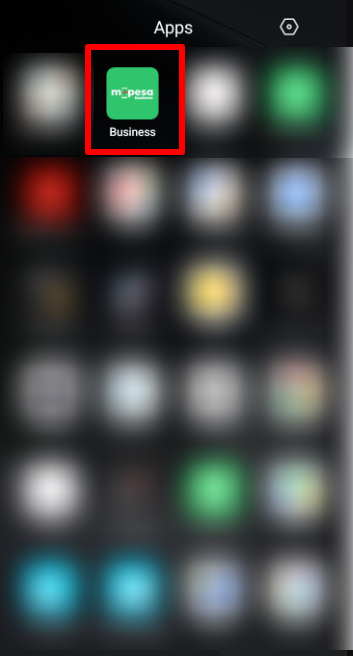
Open the M-PESA Business App on your smartphone. Ensure that you already have an active Lipa na M-PESA Buy Goods and Services Till Number before proceeding with the Lipa na M-PESA sticker download.
- Step 2: Enter M-PESA Business App PIN
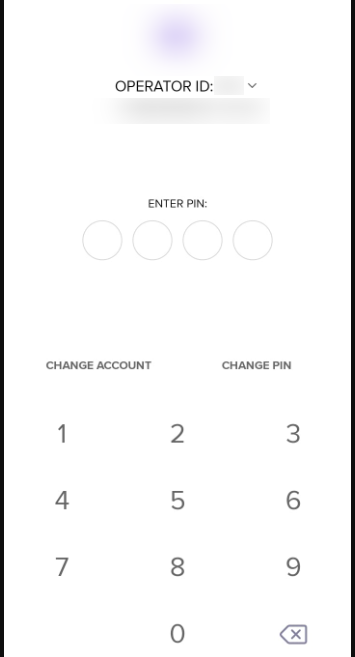
Enter your M-PESA Business App PIN to securely access your business account. Once the PIN is accepted, you will be taken to your business account dashboard.
- Step 3: Click Account
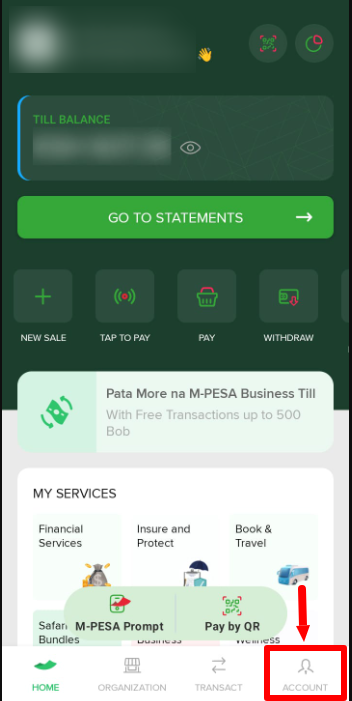
From the M-PESA Business App dashboard, click Account to access your business account settings and available account options.
- Step 4: Click My Sticker
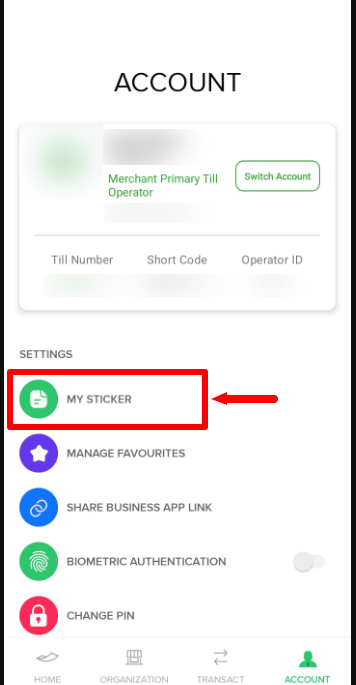
Under Settings, click My Sticker to access your Lipa na M-PESA Sticker. This option allows you to view and access the sticker associated with your Buy Goods and Services Till Number.
- Step 5: Download Lipa na M-PESA Sticker
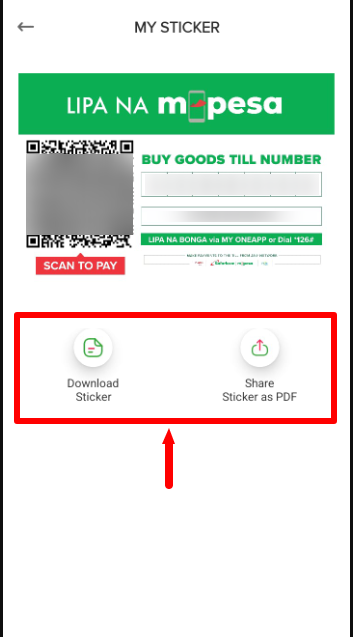
Click the option to Download Lipa na M-PESA Sticker to save the sticker as a PDF file on your device. You can also choose Share Sticker PDF if you want to share the sticker directly. The Lipa na M-PESA Sticker contains your Buy Goods Till Number, Business Name, and a Scan to Pay QR code that customers can use when making payments.
Overview: Lipa na M-PESA Sticker Download
To be able to download Lipa na M-PESA Sticker, first open the M-PESA Business App and make sure you already have an active Lipa na M-PESA Buy Goods and Services Till Number. Enter your PIN to access the app, then click Account from the dashboard. Under Settings, click My Sticker to access the Lipa na M-PESA Sticker linked to your business account.
READ ALSO: How To Search Registered Contractors In Kenya
Next, click the option to Download Lipa na M-PESA Sticker to download the sticker as a PDF file. You can also select Share Sticker PDF if you want to share the sticker directly. The sticker contains your Buy Goods Till Number, Business Name, and Scan to Pay QR code, which customers can use when making payments.