
GHRIS Payslip is an electronic salary statement that government employees can access through the Government Human Resource Information System (GHRIS). It provides employees with a convenient way to view their salary and payroll information online through their GHRIS accounts. Instead of relying on a physical copy, registered users can access their payslips through the GHRIS platform and keep a digital copy for their personal records.
This guide explains How To Download GHRIS Payslip online using the official GHRIS website. To download your payslip, you first need to log in to your GHRIS account using your User ID (Personal Number) and GHRIS Password. After successfully logging in, you can navigate to the relevant payslip section, select the payslip you want to access, and download or save the payslip to your device for future reference.
READ ALSO: How To Log In To GHRIS
What is GHRIS Payslip?
GHRIS Payslip is an electronic salary statement available to eligible government employees through the Government Human Resource Information System (GHRIS). It contains important payroll information relating to an employee’s salary for a particular pay period, allowing the employee to access their payslip online through their GHRIS account.
The GHRIS Payslip provides a convenient way for government employees to access and keep their salary records digitally. Instead of relying on a physical copy, an employee can log in to the GHRIS platform, access the available payslip, and download it for personal records or when the payslip is required for official purposes.
What is GHRIS Payslip Download?
GHRIS Payslip Download refers to the process of accessing and saving an electronic payslip from the Government Human Resource Information System (GHRIS). Government employees who have access to the GHRIS platform can log in to their accounts, locate their available payslips, and download the required payslip for their records.
The Download GHRIS Payslip process allows employees to keep a digital copy of their salary statement on a computer or mobile device. After selecting the required payslip from the GHRIS account, the employee can download or save the payslip and use it when needed for personal, financial or official purposes.
Requirements Needed To Download GHRIS Payslip
To Download GHRIS Payslip, you need to have access to your registered GHRIS account and the login details required to sign in. You should have your User ID (Personal Number) and GHRIS Password ready before starting the process. You also need access to an internet-enabled device and a web browser to visit the GHRIS website and access your payslip. The following are the requirements needed to download a GHRIS Payslip:
- User ID (Personal Number)
- GHRIS Password
Once you have your User ID (Personal Number), GHRIS Password, and access to an internet-enabled device, you can proceed to access your payslip through your GHRIS account. Make sure you can successfully log in to the GHRIS website before looking for the payslip section. Follow the steps below to Download GHRIS Payslip and save a copy of your payslip to your device.
How To Download GHRIS Payslip
To Download GHRIS Payslip, you first need to log in to your account through the official GHRIS website using your User ID (Personal Number) and GHRIS Password. After signing in successfully, you can access the different services and information available on your GHRIS account and proceed to the section where your payslips are provided.
The process of downloading a GHRIS Payslip involves accessing your GHRIS account, locating the payslip section, selecting the required salary statement, and downloading the payslip for your records. Follow the steps below to Download GHRIS Payslip from your GHRIS account.
- Step 1: Visit GHRIS website
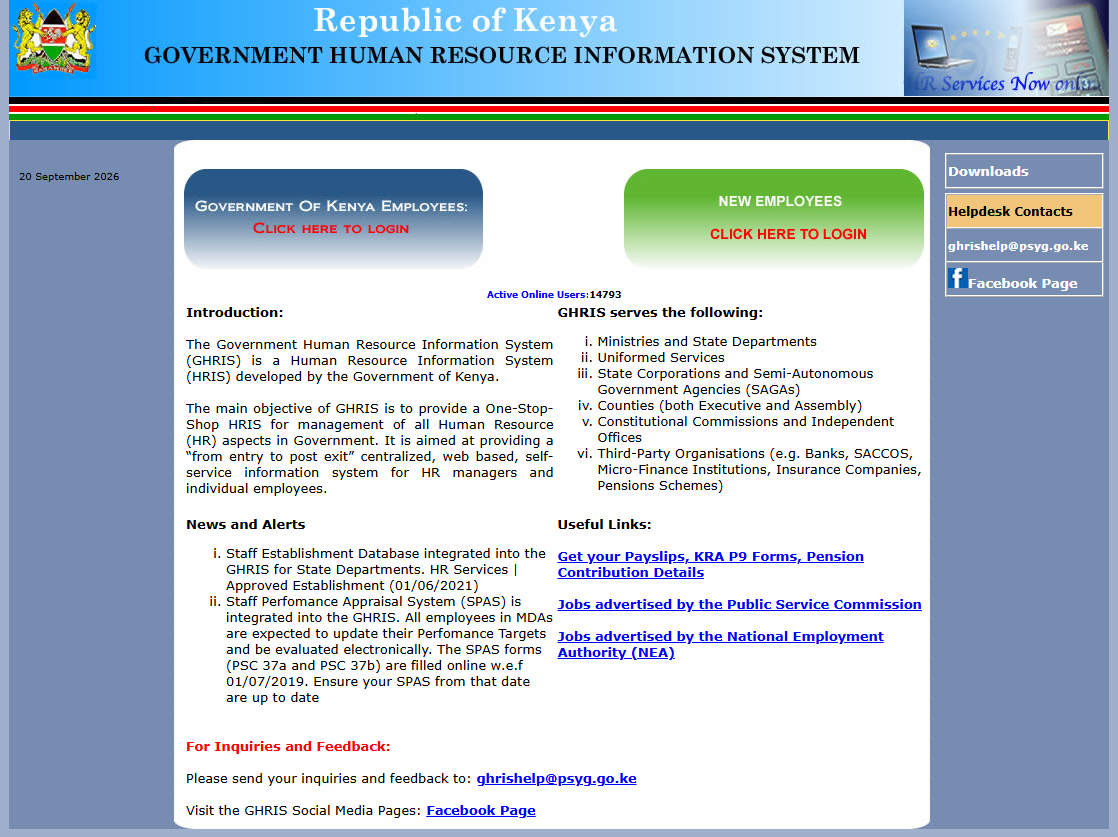
Open your web browser and visit the official GHRIS website at www.ghris.go.ke. The website provides access to GHRIS services for government employees, including access to employment and payslip-related information.
- Step 2: Government of Kenya Employees
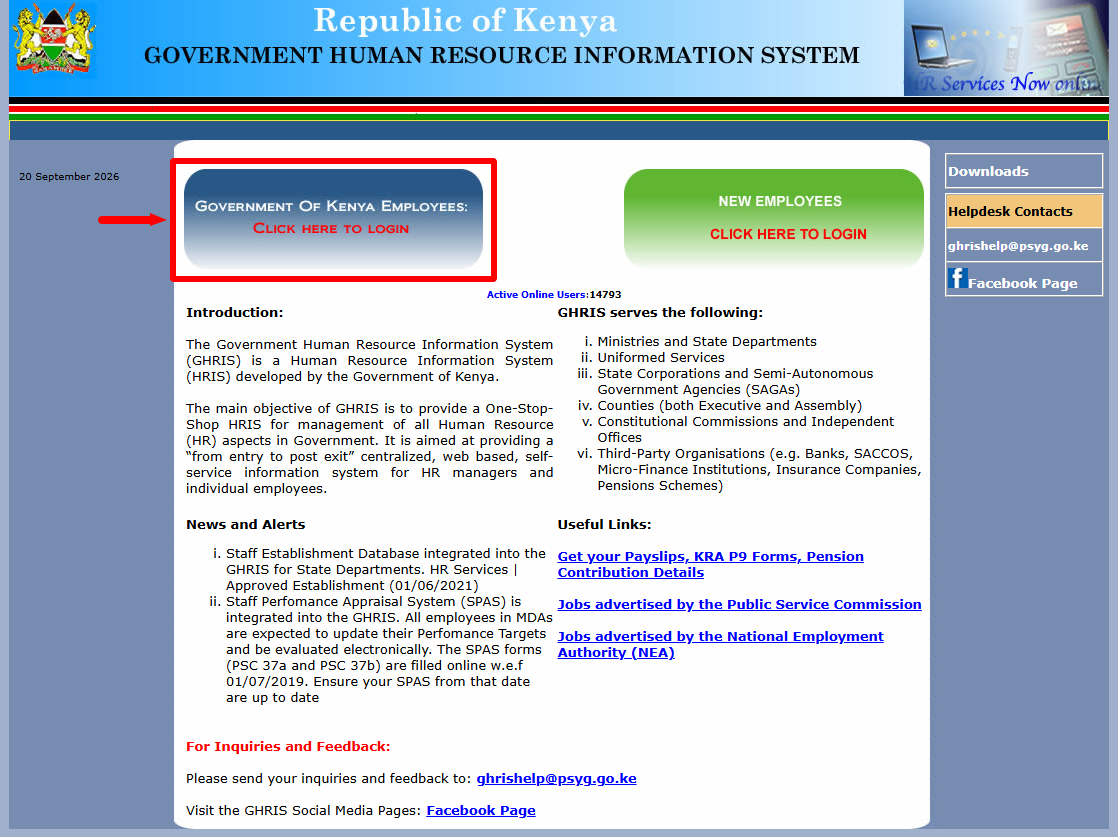
On the GHRIS website, click Government of Kenya Employees to proceed to the section for government employees. This will take you to the login area where you can enter your GHRIS account details.
- Step 3: Enter User ID (Personal Number)
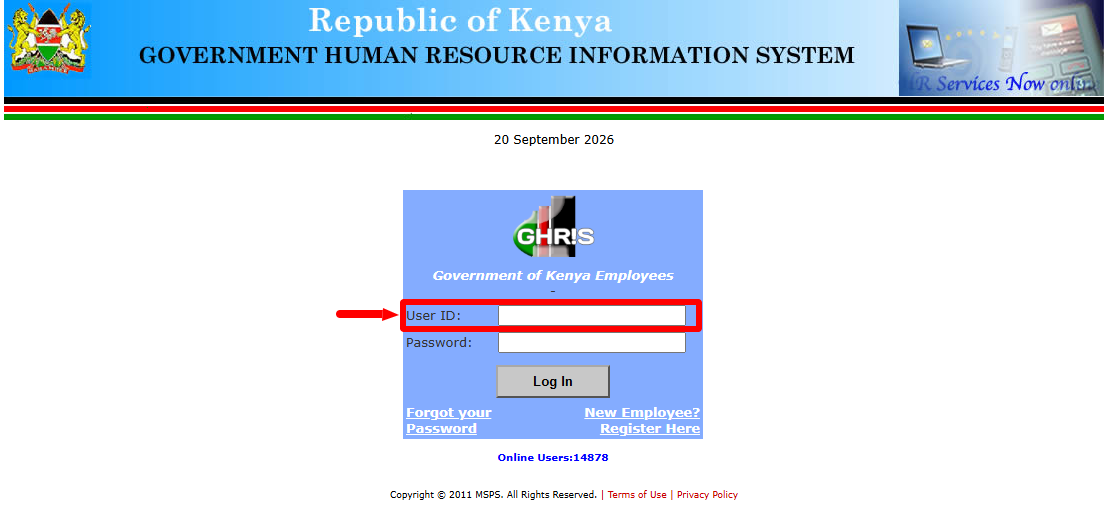
Enter your User ID (Personal Number) in the required field. Make sure you enter the correct Personal Number associated with your GHRIS account before proceeding to the password field.
- Step 4: Enter GHRIS Password
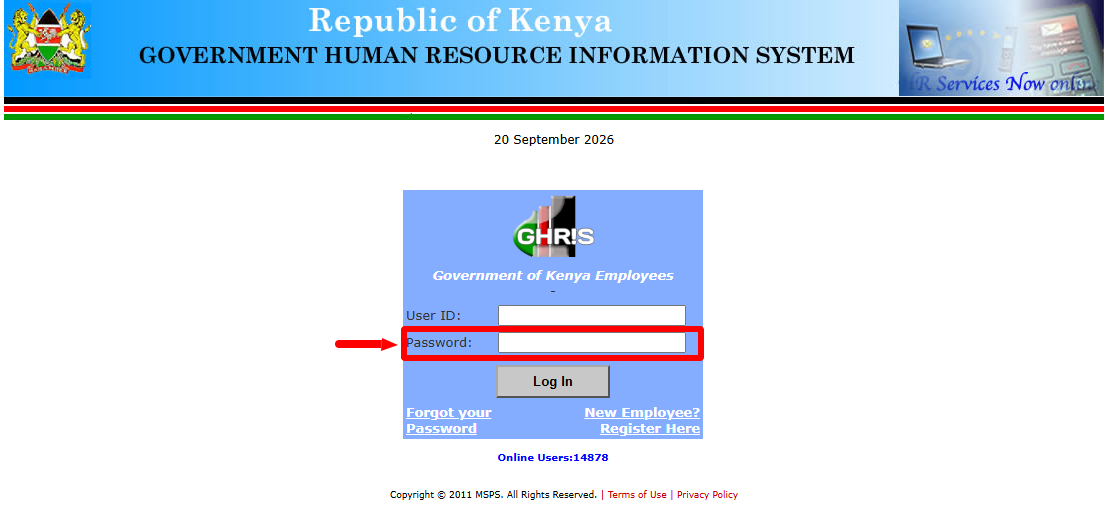
Enter your GHRIS Password in the password field provided. Check that the password has been entered correctly before continuing with the login process.
- Step 5: Click Log In
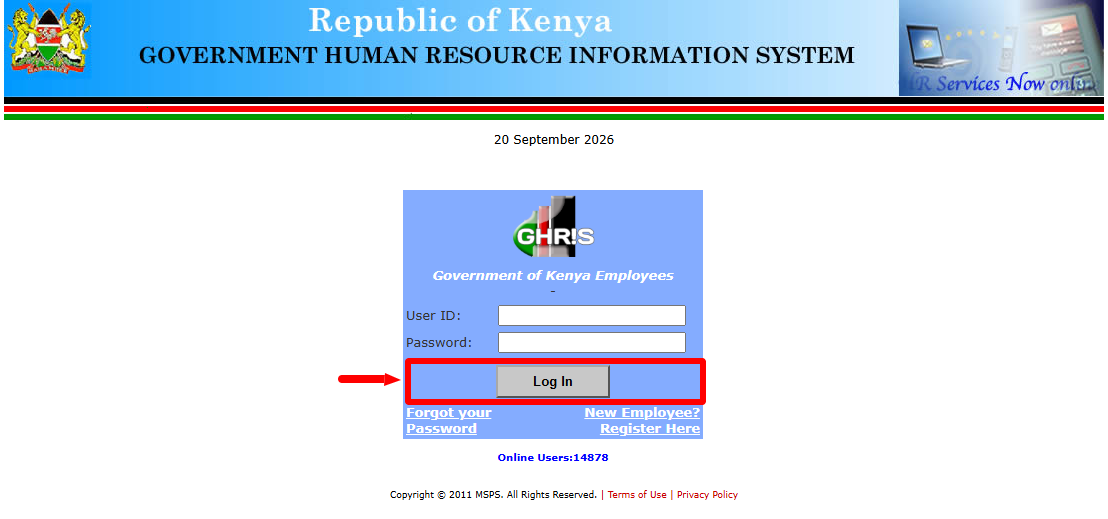
After entering your User ID (Personal Number) and GHRIS Password, click Log In to submit your login details. If the credentials are correct, you will be able to access your GHRIS account.
- Step 6: GHRIS Account Dashboard
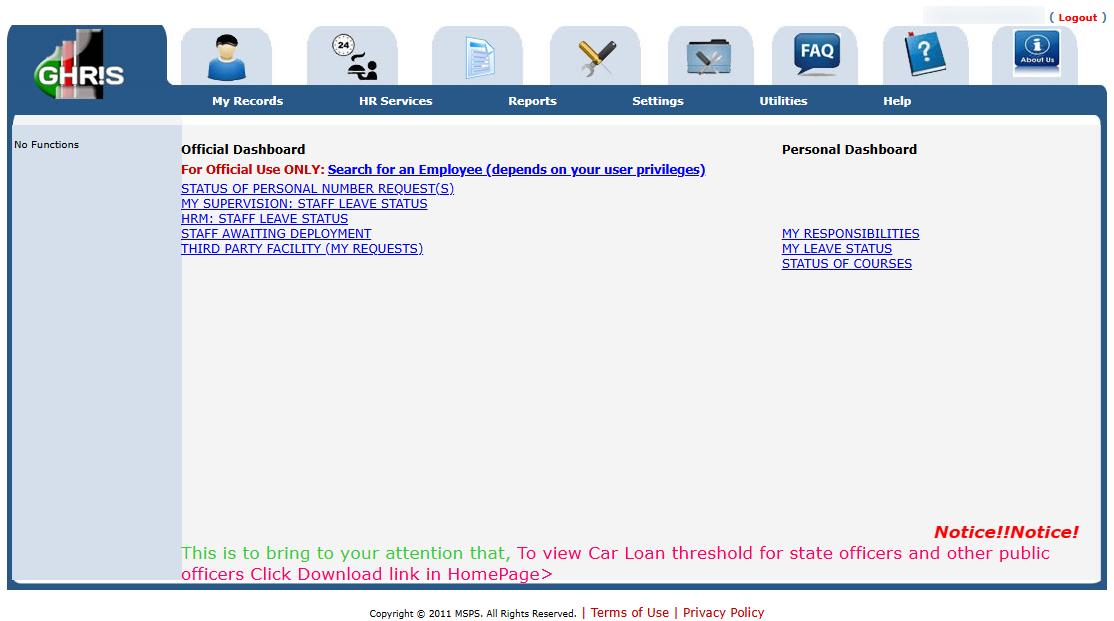
After a successful login, the GHRIS Account Dashboard will be displayed. The dashboard provides access to the different services and records available through your GHRIS account.
- Step 7: Click My Records > My Payslips
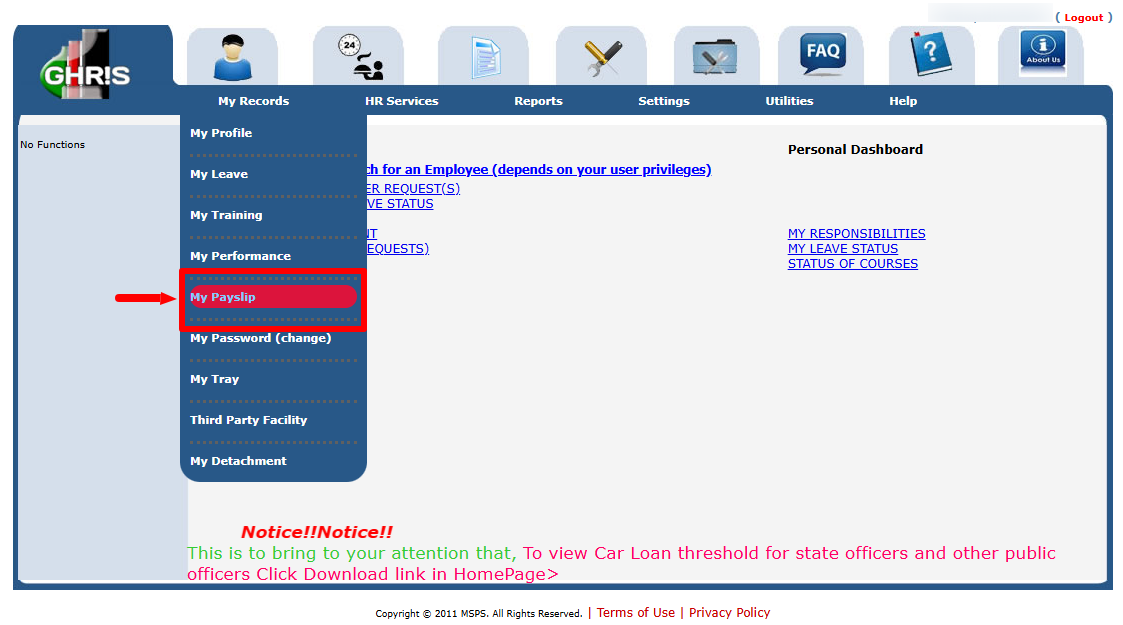
From the GHRIS Account Dashboard, click My Records, then select My Payslips. This will take you to the section where you can access your available payslip records.
- Step 8: Click UHR Payslips and P9
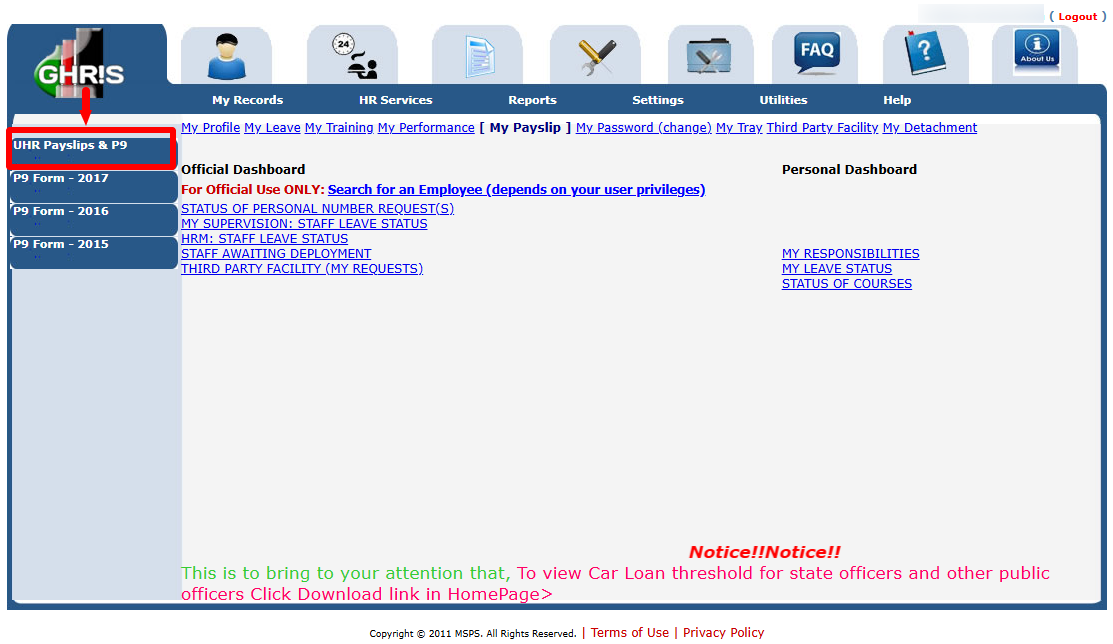
Under the payslip section, click UHR Payslips and P9 to proceed to the HRIS payroll self-service portal. This option provides access to your GHRIS payslips and P9-related records.
- Step 9: Log In To HRIS Kenya Payroll Self Portal (UHR Kenya Portal)
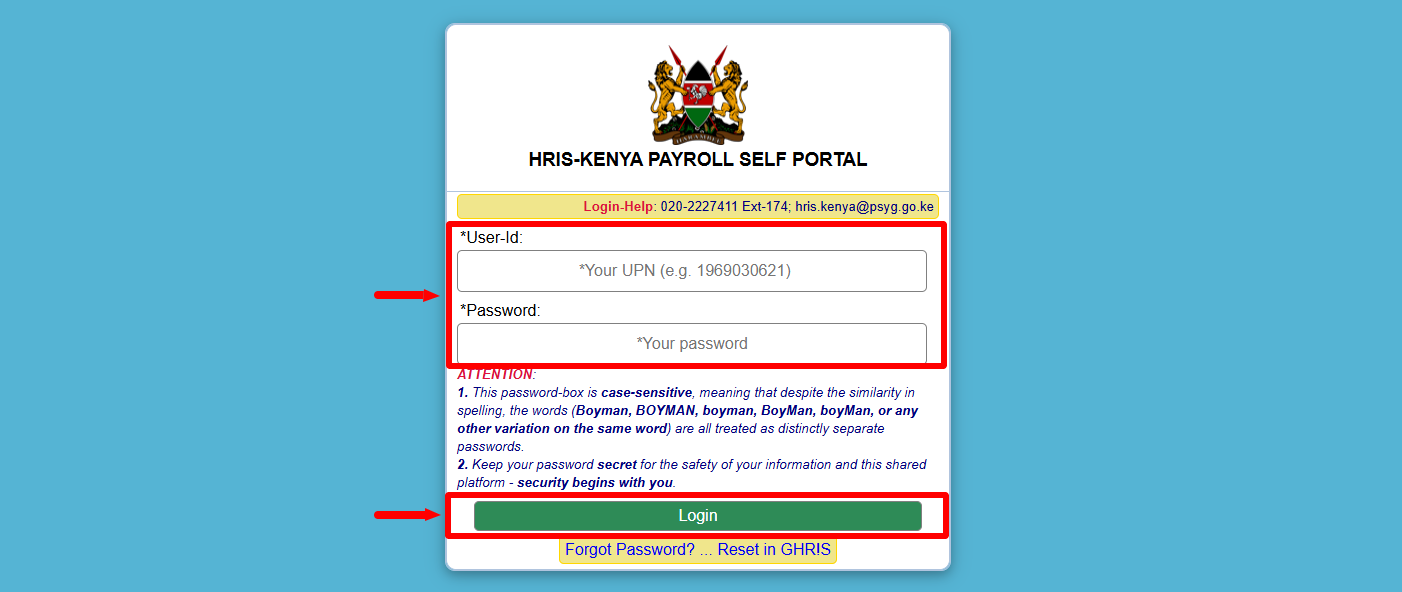
You will be directed to the HRIS Kenya Payroll Self Portal at https://uhr.kenya.go.ke/. The portal requires you to log in using your User-Id and password before you can access your payroll information.
- Step 10: Click View GHRIS Payslip
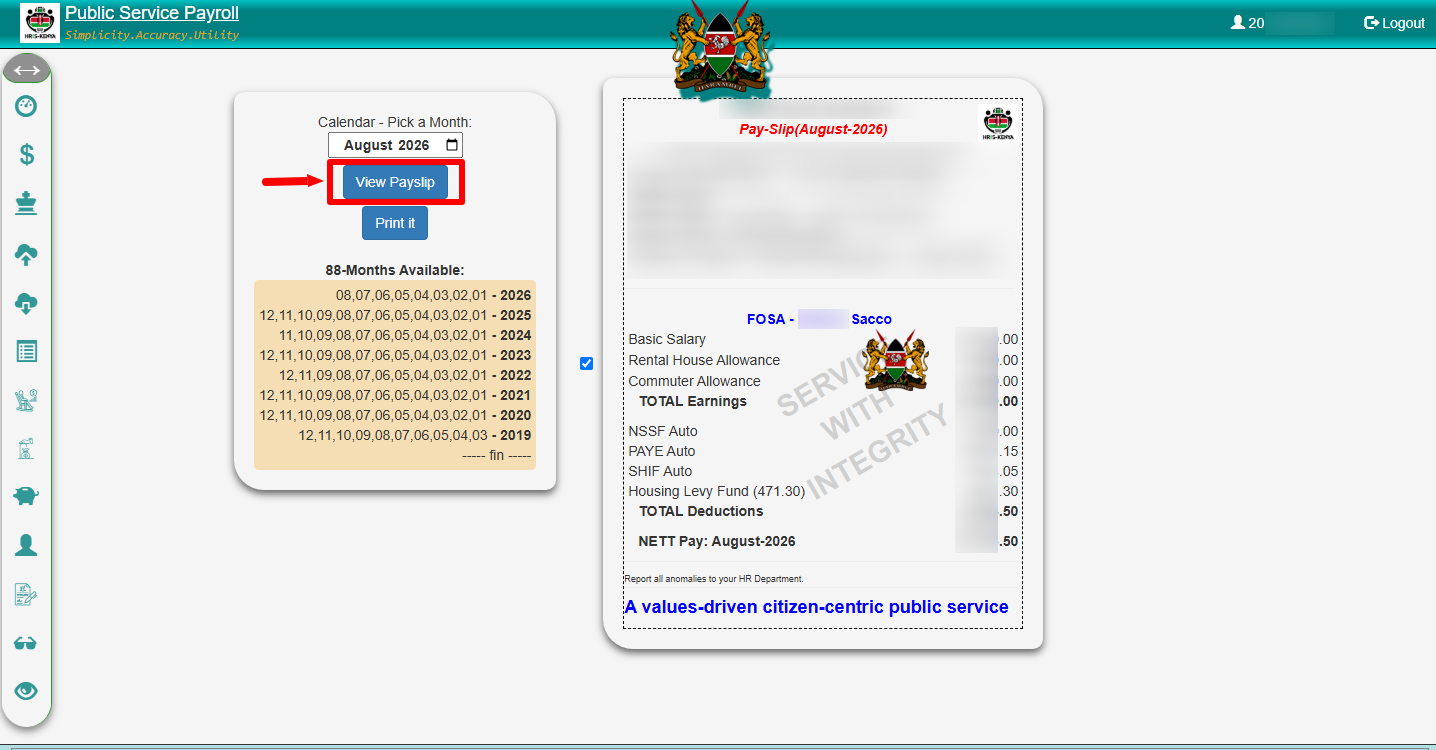
After logging in to the HRIS Kenya Payroll Self Portal, click View GHRIS Payslip to access your available GHRIS payslip. The selected payslip will be displayed for you to review.
- Step 11: Click Print GHRIS Payslip
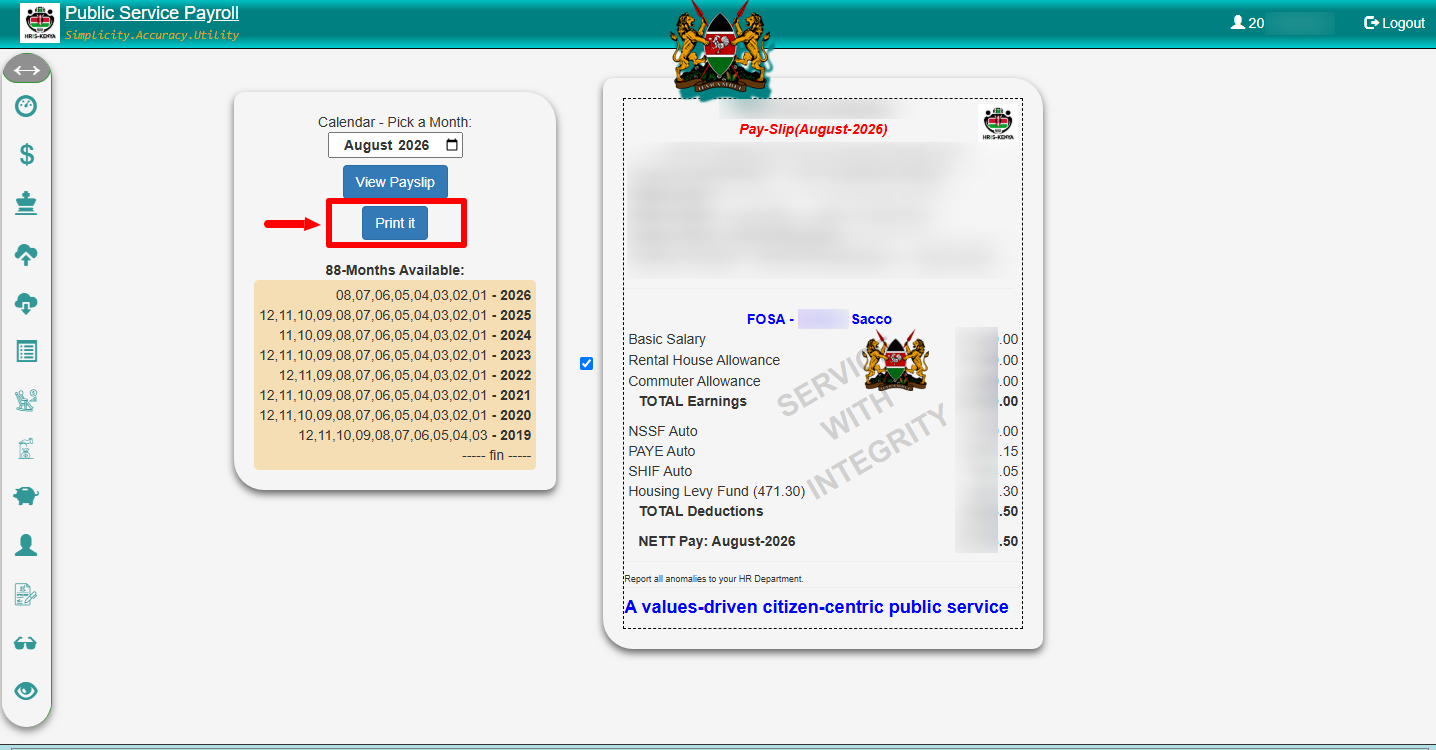
Once the GHRIS payslip is displayed, click Print GHRIS Payslip to print the GHRIS payslip PDF or use the available print options on your device to save a digital copy for your records.
Overview: GHRIS Payslip Download
To begin, visit the GHRIS website and select Government of Kenya Employees to access the employee login section. Enter your User ID (Personal Number) and GHRIS Password, then click Log In to access your account. After a successful login, the GHRIS Account Dashboard will be displayed. From the dashboard, click My Records > My Payslips, then select UHR Payslips and P9 to proceed to the payslip section.
READ ALSO: How To Log In To iCMS Portal
You will then be directed to the HRIS Kenya Payroll Self Portal at https://uhr.kenya.go.ke/, where you can access your payroll information. After accessing the portal, click View GHRIS Payslip to display your payslip. Once the required payslip is displayed, click Print GHRIS Payslip to print or save a copy of the payslip for your records.